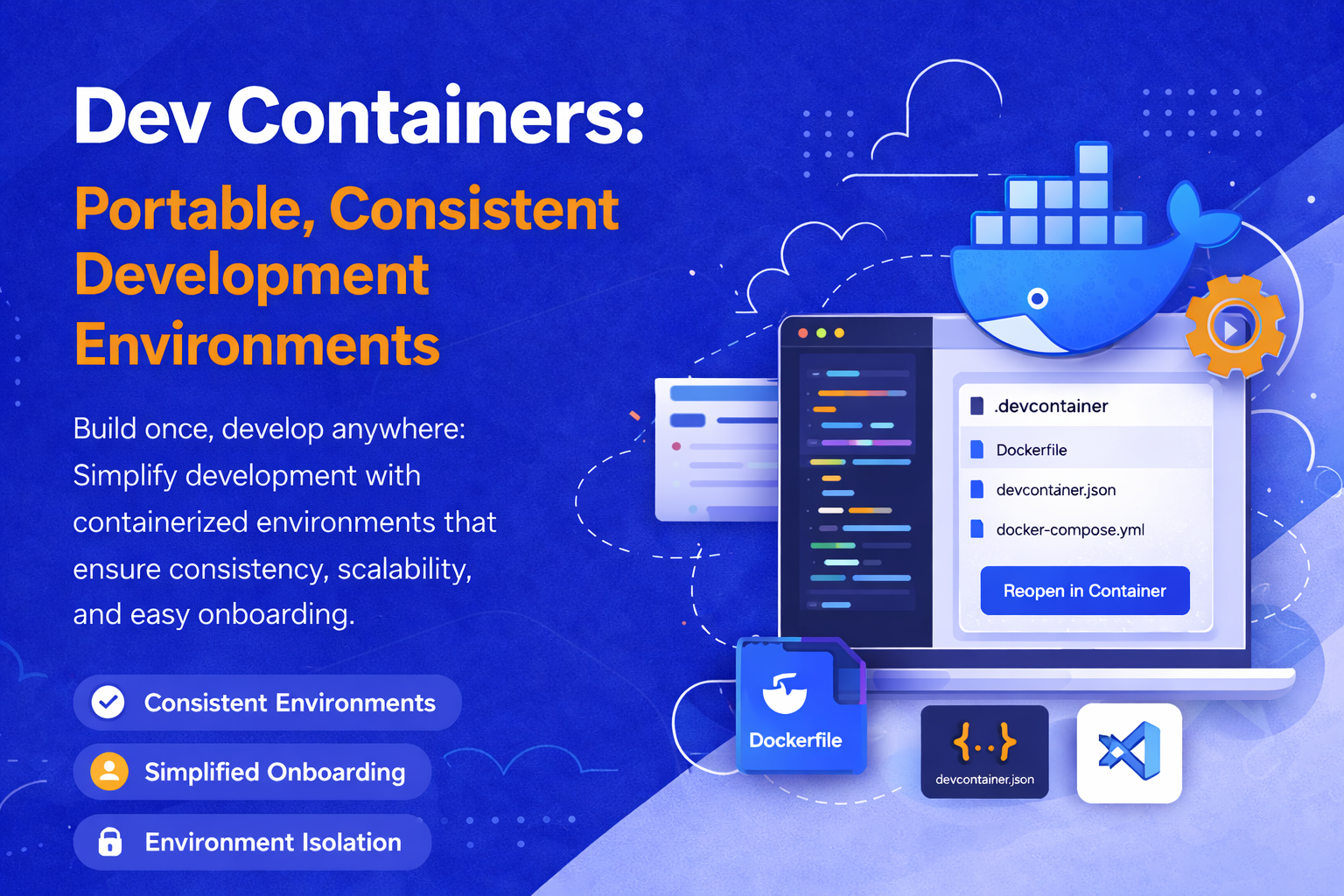
Dev Containers: Portable, Consistent Development Environments
Build once, develop anywhere: Simplify development with containerized environments that ensure consistency, scalability, and easy onboarding.
In the world of software engineering, consistency across development environments isn't just a nice-to-have — it’s critical. Differences in OS versions, installed libraries, or toolchains can lead to the infamous “it works on my machine” problem. Dev Containers offer a solution by packaging development environments using container technology, ensuring consistency and reproducibility.
In this article, we'll unpack what Dev Containers are, why they matter, and how you can leverage them to streamline development workflows, simplify onboarding, and ensure consistency across your team or organization.
What is a Dev Container?
A Dev Container is a lightweight, isolated environment configured specifically for software development. It uses Docker containers to package your entire development environment — operating system, programming language runtimes, libraries, tools, and dependencies — into a single, shareable unit.
Typically, Dev Containers are defined using a .devcontainer folder containing:
- Dockerfile or docker-compose.yml: Specifies the environment image.
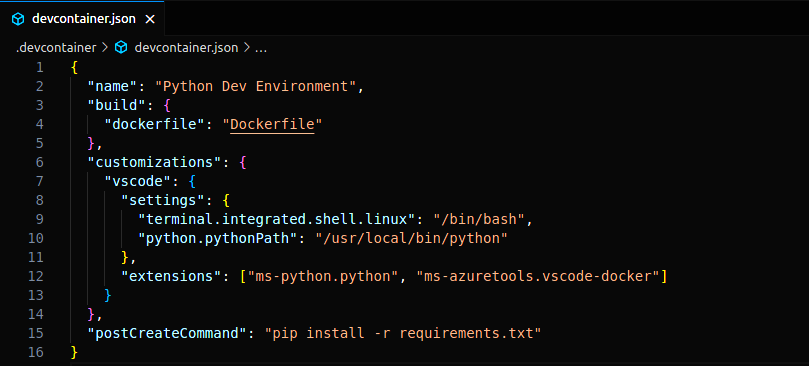
- devcontainer.json: Configures how VS Code (or other tools) should attach to the container, including extensions, settings, and startup commands.
Why Use Dev Containers?
- Consistent Environments : Every developer works inside the exact same environment, eliminating version conflicts.
- Simplified Onboarding : New team members can set up their development environment with a single command, avoiding manual setup steps.
- Isolation : Dev Containers isolate your project environment from your local machine, making it OS-agnostic and avoiding system pollution.
- Portability : Easily share your development environment via source control, allowing others to recreate the same setup anywhere Docker runs.
- Seamless Tooling Integration: Visual Studio Code and other IDEs offer native support for Dev Containers, providing a near-native development experience inside containers.
How Do Dev Containers Work?
Here’s a typical workflow using VS Code:
- Add a .devcontainer folder to your project.
- Define a Dockerfile or reference a base image.
- Configure devcontainer.json, specifying extensions, settings, and startup scripts.
- Open your project in VS Code and select “Reopen in Container”.
- VS Code builds the container and opens your project inside it.
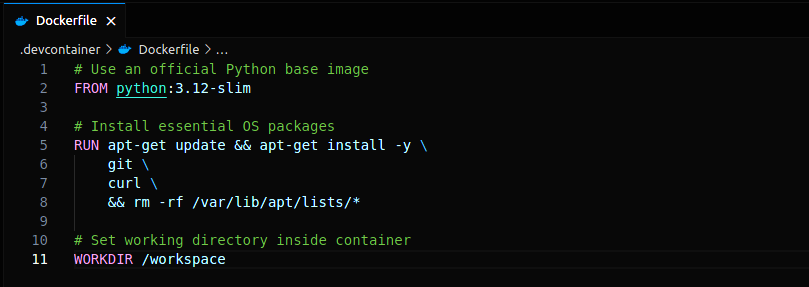
Example Dockerfile:
Example devcontainer.json:
When to Use Dev Containers
- Developing microservices requiring specific language runtimes (Node.js, Go, Python, Rust).
- Projects dependent on outdated or specialized toolchains.
- Polyglot projects need multiple isolated environments.
- Simplifying onboarding for new team members.
- Secure open-source project contributions (zero trust environments).
Why Dev Containers are better than Traditional Local Development
- Containers Are Stateless: Kill and recreate environments with zero side effects.
- Rapid Setup: One command builds the complete environment.
- Security: Sandbox your dev environment from your host machine.
- Consistency Across CI/CD: Use the same container image in local dev and your CI pipelines.
Dev Containers vs. Docker Compose vs. Virtual Machines
| Feature | Dev Containers | Docker Compose | Virtual Machines |
|---|---|---|---|
| Isolation Level | Process-level | Multi-container orchestration | Full OS-level emulation |
| Startup Time | Seconds | Seconds | Minutes |
| Resource Usage | Low | Medium | High |
| Use Case | Development only | Full application stack | Full application stack |
Tools Supporting Dev Containers
- Visual Studio Code (with the Dev Containers extension)
- GitHub Codespaces (uses Dev Containers under the hood on the cloud)
- JetBrains Gateway (limited support via Docker)
- Docker Desktop
Advanced Tips
- Use pre-built images to reduce build times ("image" in devcontainer.json).
- Use postCreateCommand for dependency installation.
- Use bind mounts for live reload development.
- Automate environment setup via GitHub Actions for continuous deployment/testing.
Conclusion
Dev Containers are more than a convenience — they’re becoming the standard for professional, scalable, and secure software development workflows. By isolating environments, automating setup, and integrating seamlessly with popular editors, Dev Containers allow developers to focus on building software instead of debugging their environments.
Ready to Try?
If you’re ready to experience the benefits first-hand, follow these simple steps:
- Install the Remote - Containers extension in VS Code.
- Add a .devcontainer/ folder to your project.
- Define your Dockerfile and devcontainer.json.
- Click “Reopen in Container” — and start coding!